
Shopify product video should make a buyer more certain before they add an item to cart. It is not just a social clip pasted into a product page. A good product page video answers one buying objection, shows the product in context, and fits the way the Shopify theme displays media on desktop and mobile.
Use this checklist before you upload a product video to Shopify, before you generate AI variants, and before you reuse the asset for TikTok, Reels, Shorts, or paid ads. If you need a production tool for the Shopify route, start with the Shopify product video generator. If you need a broader workflow first, use how to make Shopify product videos without a camera.
Quick Answer
A Shopify product video checklist should cover the buying question, product proof, file readiness, theme support, mobile crop, captions, accessibility, page speed, and social reuse. For most ecommerce products, create one PDP-first video that explains the product in 15 to 45 seconds, then export shorter vertical variants for social ads. Do not add a video unless it reduces uncertainty about size, fit, use, setup, contents, material, result, or offer.
| Checklist area | Pass standard | Why it matters |
|---|---|---|
| Buyer question | The video answers one clear objection | Prevents decorative video from slowing the page |
| Product truth | Claims match the product page, reviews, and packaging | Reduces refund and compliance risk |
| Placement | The media gallery or lower PDP section has a defined job | Keeps video close to the decision point |
| File readiness | Export fits Shopify limits and common storefront playback needs | Avoids upload and theme display problems |
| Mobile crop | Product, captions, and CTA stay readable on mobile | Most shoppers inspect PDP media on small screens |
| Theme behavior | Video controls, thumbnails, and fallback image work | Prevents broken media galleries |
| Reuse plan | Social versions are cropped and paced separately | Keeps PDP video and ad creative from doing the same job |
What Shopify Product Video Should Prove
Start with the product detail page, not the editing timeline. The best Shopify product video usually proves one of these points:
- The product is the size the buyer expects.
- The material, texture, color, or finish is clear.
- The product solves the specific use case described in the copy.
- The setup, assembly, or routine is easy enough.
- The bundle includes everything the buyer expects.
- The result is visible without exaggerated claims.
- The product fits a real room, outfit, desk, bag, shelf, skin tone, pet, or workflow.
If the video cannot be mapped to one of those jobs, use it for social creative instead of the PDP media gallery.
Shopify Product Video Placement Checklist
Shopify product media can include images, videos, and 3D models. Shopify also notes that the online store theme needs to support video or 3D media for those assets to display correctly. That means the same video can be technically valid but still weak if the theme crop, thumbnail, controls, or autoplay behavior are poor.
| Placement | Best video type | Recommended length | QA before publishing |
|---|---|---|---|
| First media gallery slots | Product overview or primary use case | 15-30 seconds | Thumbnail, mobile crop, first frame, no hidden price text |
| Lower product page section | Setup, routine, size, comparison, objection handling | 30-60 seconds | Captions, claim accuracy, load speed, nearby copy |
| Variant or bundle section | What is included, fit, color, compatibility | 15-45 seconds | Correct SKU facts, no mixed variant proof |
| Post-purchase or support content | Assembly, care, usage tips | 45-90 seconds | Helpful steps, no sales-only framing |
| Social reuse | Hook-led product ad cut | 8-25 seconds | 9:16 crop, first 2 seconds, single CTA |
The Pre-Upload Shopify Video Workflow
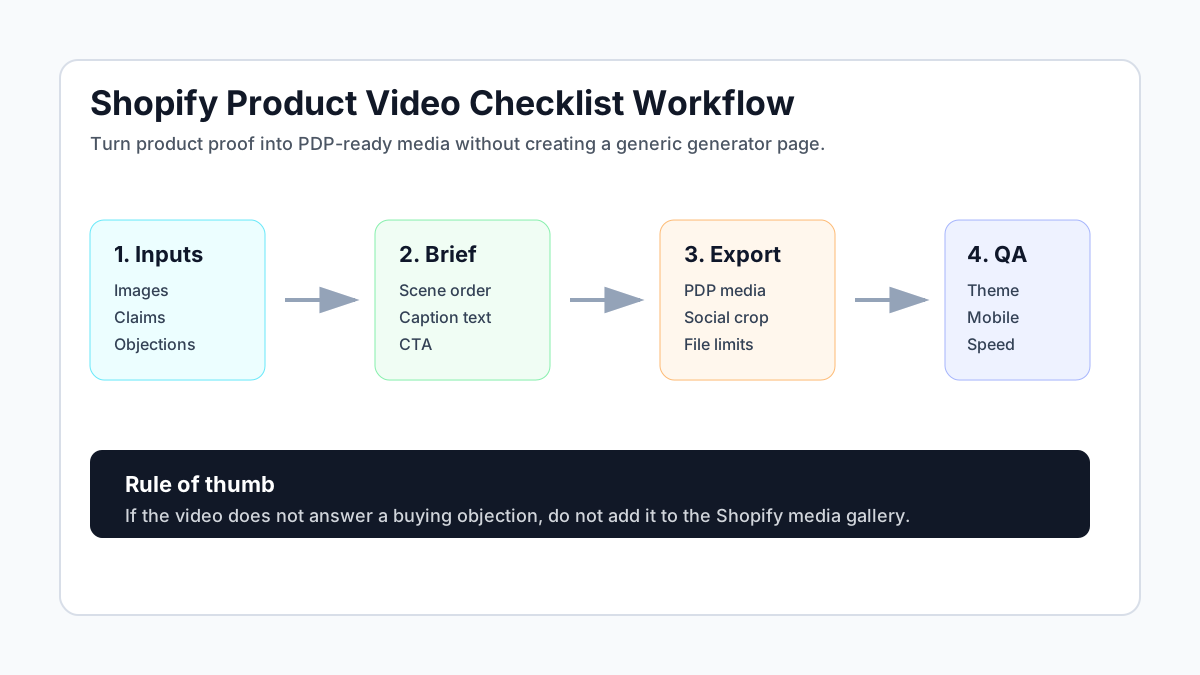
Use this workflow for every product before upload.
- Pick one buying objection.
- Pull product facts from the Shopify product page.
- Choose one video placement.
- Write a short scene brief.
- Generate or edit the video.
- Export one PDP-first file and any social cuts.
- Test the media inside the Shopify theme.
- Publish only if the video improves clarity.
This is also the cleanest way to use AI. Instead of asking an AI tool for "a product video," give it product facts, visual references, the buyer objection, and the placement. For script structure, adapt the product video script template.
Product Facts to Collect Before AI Generation
AI video output improves when the source brief is specific. Build the brief from product data that already exists in Shopify.
| Input | What to collect | Example use in video |
|---|---|---|
| Product images | Hero image, detail image, lifestyle image, packaging image | Create scene order and visual continuity |
| Product title | Exact product name and variant | Avoid wrong product naming in captions |
| Description | Material, use case, feature proof | Turn features into scenes |
| Variant data | Size, color, pack count, model | Prevent mismatched visuals |
| Reviews or FAQs | Buyer doubts and repeated questions | Write objection-handling captions |
| Offer | Discount, free shipping, bundle, warranty | Use one CTA without clutter |
| Brand rules | Tone, colors, banned claims | Keep AI output consistent |
Shopify Media And Theme QA
Before publishing, open the product page on desktop and mobile. Do not rely only on the upload preview.
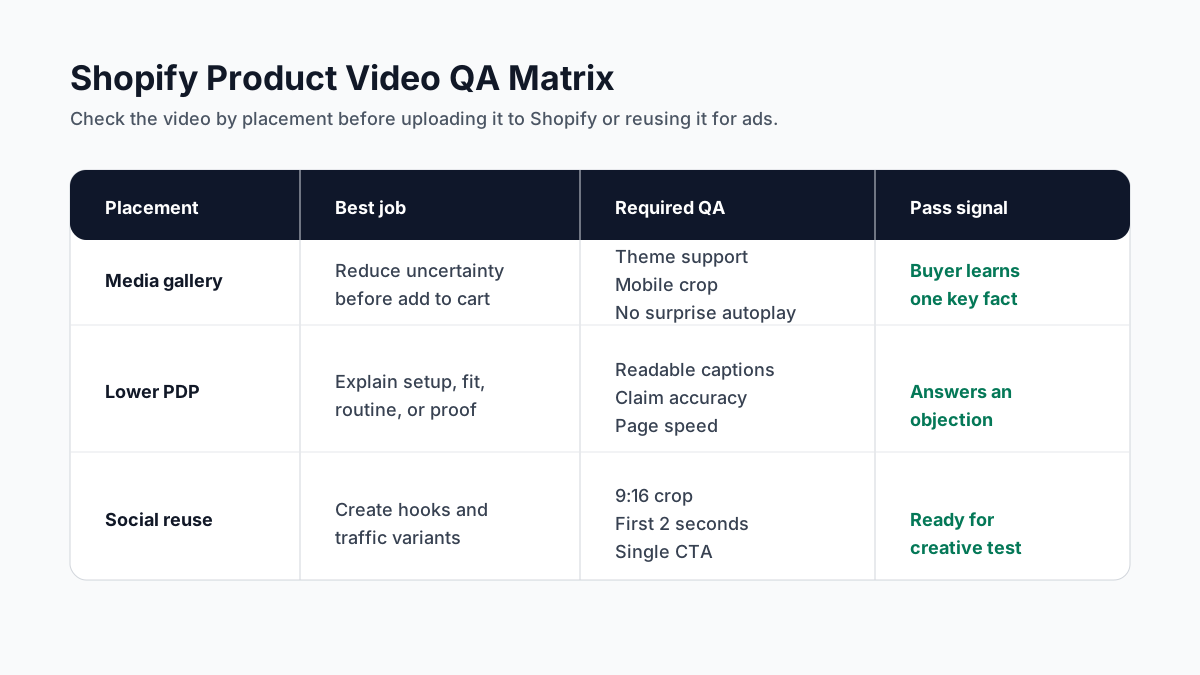
Media gallery QA
- The thumbnail clearly shows the product.
- The first frame does not look blank or blurry.
- The video does not push the best product image too far down the gallery.
- The product remains visible in the first 2 seconds.
- Text does not sit under mobile controls or theme overlays.
- The media gallery still works when the video fails to load.
Accessibility and playback QA
Shopify developer guidance highlights video parameters such as autoplay, loop, muted, and controls. Shopify accessibility guidance also recommends that media should not autoplay unexpectedly and that controls should use native, accessible behavior. For ecommerce pages, the safest default is simple: let the shopper control playback, keep captions readable, and avoid sound-dependent selling points.
| QA item | Pass | Fix if it fails |
|---|---|---|
| Captions | Main point is readable without sound | Add burned-in captions or nearby text |
| Controls | User can pause or replay the video | Change theme media settings or placement |
| Autoplay | No distracting unexpected playback | Disable autoplay or keep it muted |
| Contrast | Text is legible on mobile | Increase text size and background contrast |
| Fallback | The thumbnail explains the video | Replace the poster frame |
Content QA For Product Claims
Product video often creates claim risk because motion makes claims feel stronger. Check every line against the product page.
- Do not imply guaranteed results unless the product page supports them.
- Do not use fake before/after proof.
- Do not imply a real customer testimonial when using an AI actor or fictional scene.
- Do not show a bundle item that is not included.
- Do not show a color, size, plug type, dosage, or compatibility that belongs to another variant.
- Do not copy a competitor's footage, creator likeness, or branded scene.
If you want to study viral formats without copying them, use how to clone viral product videos without copying.
PDP Video Vs Social Ad Video
A Shopify PDP video and a paid social ad can share source assets, but they should not be identical.
| Factor | Shopify product page video | Social ad video |
|---|---|---|
| Main job | Reduce uncertainty before purchase | Stop scroll and earn a click |
| Hook style | Clear product context | Strong pattern interrupt |
| CTA | Add to cart, choose variant, check size | Shop now, learn more, claim offer |
| Pacing | Slightly slower and more explanatory | Faster cuts and earlier payoff |
| Proof | Product detail, use, fit, contents | Desire, outcome, offer, social proof |
| Best placement | Media gallery or lower PDP section | TikTok, Reels, Shorts, Meta ads |
For channel-specific variants, compare this checklist with YouTube Shorts specs for ecommerce product videos, Meta video ad specs for ecommerce placements, and Amazon Sponsored Brands video creative checklist.
Shopify Product Video Checklist
Run this list before upload.
Strategy
- The video has one clear job.
- The job matches the product page placement.
- The video supports the product page copy instead of repeating it.
- The CTA is single and specific.
Creative
- The product appears in the first 2 seconds.
- Captions are readable on mobile.
- Product details are not hidden by text overlays.
- The video shows scale, use, or proof.
- The video does not make unsupported claims.
Technical
- The file format and size are upload-ready.
- The video has a useful poster frame or thumbnail.
- The media gallery still loads quickly.
- The theme supports video playback.
- The video is checked on mobile and desktop.
Measurement
- Track add-to-cart rate for products with the video.
- Watch scroll depth or engagement if the video sits below the fold.
- Compare return reasons and support questions before and after.
- Use social ad cuts to test hooks before replacing PDP media.
Example Brief For A Shopify Product Video
Use this brief with ShopShot or any AI video workflow.
| Field | Fill-in prompt |
|---|---|
| Product | What is the product and variant? |
| Buyer objection | What might stop the buyer from purchasing? |
| Video placement | Media gallery, lower PDP, support section, or social cut? |
| Scene 1 | What should appear in the first 2 seconds? |
| Proof scene | What real product detail should be shown? |
| Caption style | Direct, playful, technical, luxury, or creator-like? |
| CTA | What is the one next action? |
| Do not show | Unsupported claims, wrong variants, copied scenes, unsafe usage |
FAQ
What is the best length for a Shopify product video?
For a product page media gallery, 15 to 30 seconds is usually enough. Use 30 to 60 seconds for setup, fit, or comparison videos lower on the page.
Should Shopify product videos be vertical or square?
Use the format that fits the placement. Vertical is useful for social reuse and mobile viewing, but some product media galleries work better with a balanced crop. Test the theme before publishing.
Can I use AI-generated video on a Shopify product page?
Yes, if the video accurately represents the product. Use AI for scene generation, captions, and variants, but verify product facts, size, materials, included items, and claims before upload.
Where should I place a Shopify product video?
Put the strongest product clarity video in the media gallery. Put setup, comparison, fit, and objection-handling videos lower on the product page near related copy, FAQs, or reviews.
Does every Shopify product need a video?
No. Prioritize products with buyer hesitation, high traffic, high return risk, complex setup, visual texture, fit concerns, bundles, or strong social ad potential.
Sources Checked
- Shopify Help: Product media
- Shopify Help: Product media types
- Shopify Help: Adding product media
- Shopify Developers: Support product media
- Shopify Developers: Accessibility best practices
For a full production workflow after this checklist, use the Shopify product video generator and the AI ecommerce video creation guide.