
A product video can be clear in the editor and still look weak after upload. The usual problem is not the script. It is the export: the wrong container, a low bitrate, a mismatched aspect ratio, resampled frame rate, soft caption edges, or audio that gets stripped or compressed by the platform.
Quick Answer
For most ecommerce ads, export a clean MP4 using H.264 video, AAC audio, progressive scan, square pixels, and the same frame rate you edited in. Use 1080 x 1920 for vertical social ads, 1080 x 1080 for square feed variants, and 1920 x 1080 for YouTube or Amazon horizontal placements. Keep the bitrate high enough to preserve product texture and overlay text, then run a final phone QA pass before upload.
If you generate product videos with ShopShot's AI video generator, treat the export step as the last approval gate. The file should still match the product page, show the product clearly, keep captions readable, and meet the upload rules for TikTok, Meta, YouTube, Amazon, or your store.
Why Export Settings Matter For Ecommerce Video
Export settings decide how much visual information survives between your edit and the viewer's phone. That matters more for product ads than for many creator videos because commerce videos carry small but important details:
- Texture, material, finish, and product edges.
- Price, offer, bundle, size, and CTA overlays.
- Review proof, star ratings, and product comparison labels.
- Packaging details, included accessories, and variant colors.
- Demonstration moments where the viewer needs to understand what changed.
When the export is too compressed, these details blur. When the file is too large, upload and processing become slow. When the format is wrong, a platform may reject the file or recompress it more aggressively. The goal is not to create the smallest file. The goal is to upload a file that is easy for the platform to process while preserving the buyer information that makes the ad useful.
Use this guide after you choose the right product video resolution, aspect ratio, and frame rate.
The Default Export Preset
Start with this preset unless a platform-specific spec says otherwise.
| Setting | Default for ecommerce ads | Why it works |
|---|---|---|
| Container | MP4 | Broad support across ad platforms, editors, and review tools. |
| Video codec | H.264 | Reliable compatibility for TikTok, Meta, YouTube, Amazon, and storefront uploads. |
| Audio codec | AAC | Commonly accepted and stable for voiceover, music, and product sound. |
| Scan type | Progressive | Avoids interlacing artifacts on mobile screens. |
| Pixel aspect | Square pixels | Prevents stretched product shapes and distorted text. |
| Frame rate | Match the edit, usually 24, 25, 30, or 60 fps | Avoids stutter from unnecessary frame-rate conversion. |
| Color | Standard SDR unless the whole workflow is HDR | Keeps color predictable across social and ecommerce surfaces. |
| Filename | Lowercase, descriptive, no spaces | Easier asset tracking and fewer handoff errors. |
For a first paid test, a clean H.264 MP4 is usually better than a niche high-efficiency format. H.265 can produce smaller files, and Amazon Sponsored Brands video accepts H.265, but H.264 remains the safer default when the same file may be adapted across several channels.
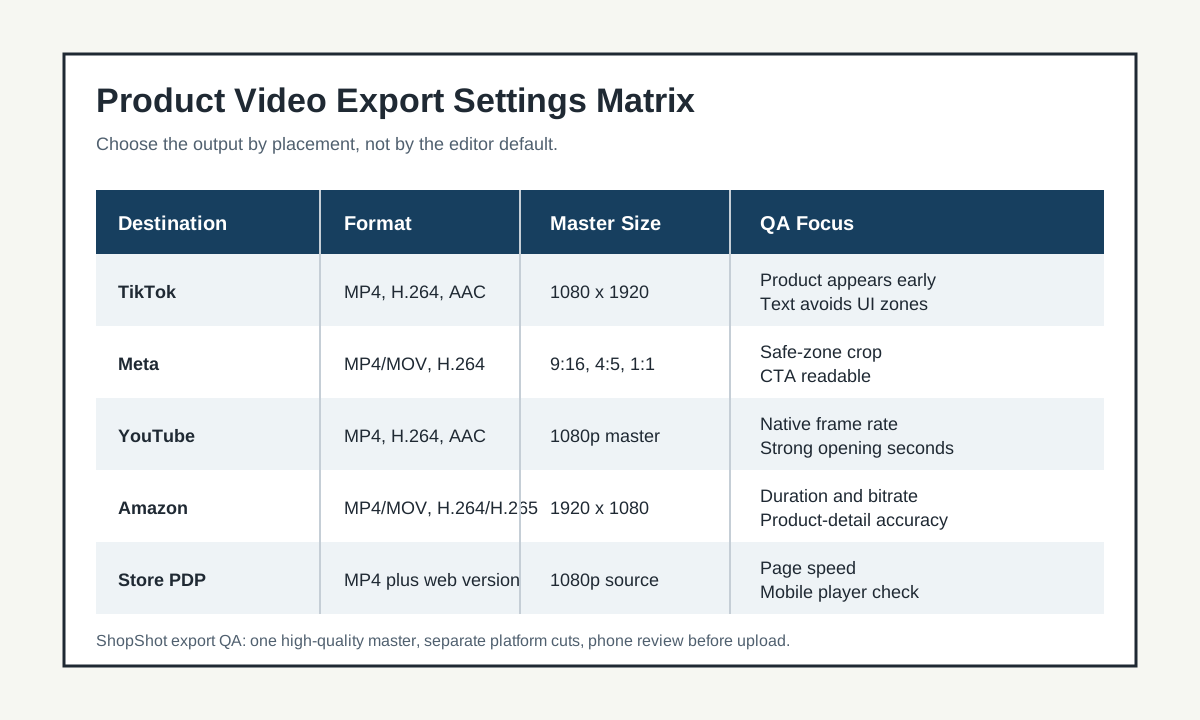
Platform Export Matrix
Use the table below as a practical planning layer. Always check the destination upload screen before launching because specs can change by placement, account, and campaign type.
| Destination | Practical export | Key check before upload |
|---|---|---|
| TikTok Shop or TikTok ads | 1080 x 1920 MP4, H.264, AAC, 9:16 | Keep text away from UI zones and make sure the product appears early. |
| Meta Reels or Stories | 1080 x 1920 MP4 or MOV, H.264, AAC, 9:16 | Check safe zones, caption readability, and whether the CTA is visible. |
| Meta Feed | 1080 x 1080 or 1080 x 1350 MP4/MOV | Confirm crop behavior for product close-ups and price overlays. |
| YouTube Shorts | 1080 x 1920 MP4, H.264, AAC | Preserve the native frame rate and verify the first seconds work without context. |
| YouTube horizontal ads | 1920 x 1080 MP4, H.264, AAC | Use a high-quality 1080p export and avoid tiny product text. |
| Amazon Sponsored Brands video | 1920 x 1080 MP4/MOV, 16:9 | Check duration, codec, file size, bitrate, and product-detail accuracy. |
| Store PDP or landing page | 1080p MP4 plus compressed web version | Balance quality with page speed and test the player on mobile. |
This is a workflow table, not a replacement for the official specs. Google Ads, TikTok, Meta, and Amazon each define placement-specific requirements. The safest process is to export one high-quality master, then create platform cuts from that master instead of repeatedly compressing the same file.
Bitrate: Do Not Crush The Product Details
Bitrate controls how much data is used to describe each second of video. Too low and you get blocky shadows, smeared fabric, muddy skin tones, unreadable captions, and soft product edges. Too high and you create a heavy file that takes longer to upload and process.
For ecommerce videos, judge bitrate by the hard parts of the asset:
| Video content | Compression risk | Export recommendation |
|---|---|---|
| Simple product on clean background | Low | Moderate bitrate can work if text is large and the product is static. |
| Skincare, apparel, jewelry, food, or textured surfaces | High | Use a higher-quality export because texture and color sell the item. |
| Fast UGC cuts with hands, packaging, and captions | High | Avoid low bitrate; motion and overlays need more data. |
| Screen recording or product app demo | Medium to high | Keep edges and UI text sharp; review after platform processing. |
| Retargeting ad with price or offer overlays | Medium | Text readability matters more than cinematic softness. |
YouTube's own upload guidance gives bitrate recommendations by resolution and frame rate, which are useful quality anchors even when the final destination is not YouTube. TikTok states a minimum bitrate for auction in-feed ads, while Amazon Sponsored Brands video lists both a minimum and a recommended bitrate. Those minimums are acceptance floors, not quality targets for product ads.
The practical rule is simple: export high enough that product texture and text survive the first compression pass, then reduce only if the file is too large for the destination.
Resolution, Frame Rate, And File Size Work Together
Export settings should be decided as a set. If you raise resolution, file size increases. If you raise frame rate, you usually need more bitrate. If you lower bitrate to hit a small file-size target, product detail may suffer.
Use this decision table:
| Need | Choose | Avoid |
|---|---|---|
| Broad mobile ad testing | 1080p vertical, H.264 MP4, 30 fps | Exporting every test as a giant 4K file. |
| Smooth product motion | 30 or 60 fps if the footage was created that way | Converting 24 fps footage to 60 fps without a reason. |
| Clear overlay text | Higher bitrate, simple fonts, strong contrast | Thin text, low bitrate, and busy backgrounds. |
| Fast upload review | One high-quality master plus smaller platform cuts | Re-exporting from a previously compressed social download. |
| Amazon horizontal ad | 16:9, 1920 x 1080, platform-approved duration and codec | Uploading a vertical social cut into a horizontal placement. |
If you are unsure, do not start by changing everything. Fix the largest issue first: aspect ratio, then resolution, then frame rate, then bitrate, then file size.
Audio Export Settings
Many ecommerce teams focus on the video track and forget that audio can make or break the ad. Even when viewers start muted, platforms and buyers still evaluate whether the clip feels complete once sound is enabled.
Use AAC audio for most social exports. Keep the mix simple: voiceover first, product sound second, music under both. Avoid clipping, sudden volume jumps, and music that masks the product claim or CTA.
| Audio item | Pass condition | Fix before upload |
|---|---|---|
| Voiceover | Clear on phone speakers | Voice buried under music or heavy effects. |
| Product sound | Supports the demo | Distracts from the product or sounds distorted. |
| Music | Licensed and low enough | Unlicensed track or mix that hides the message. |
| Ending | CTA is audible or not dependent on audio | Final action only exists in the soundtrack. |
| Platform rule | Destination accepts the audio behavior | Amazon Sponsored Products video notes that audio is removed for that format. |
If the product video depends on sound to explain the offer, add readable captions. If it depends on captions, make sure the export keeps text sharp on a phone.
A Practical Export Workflow
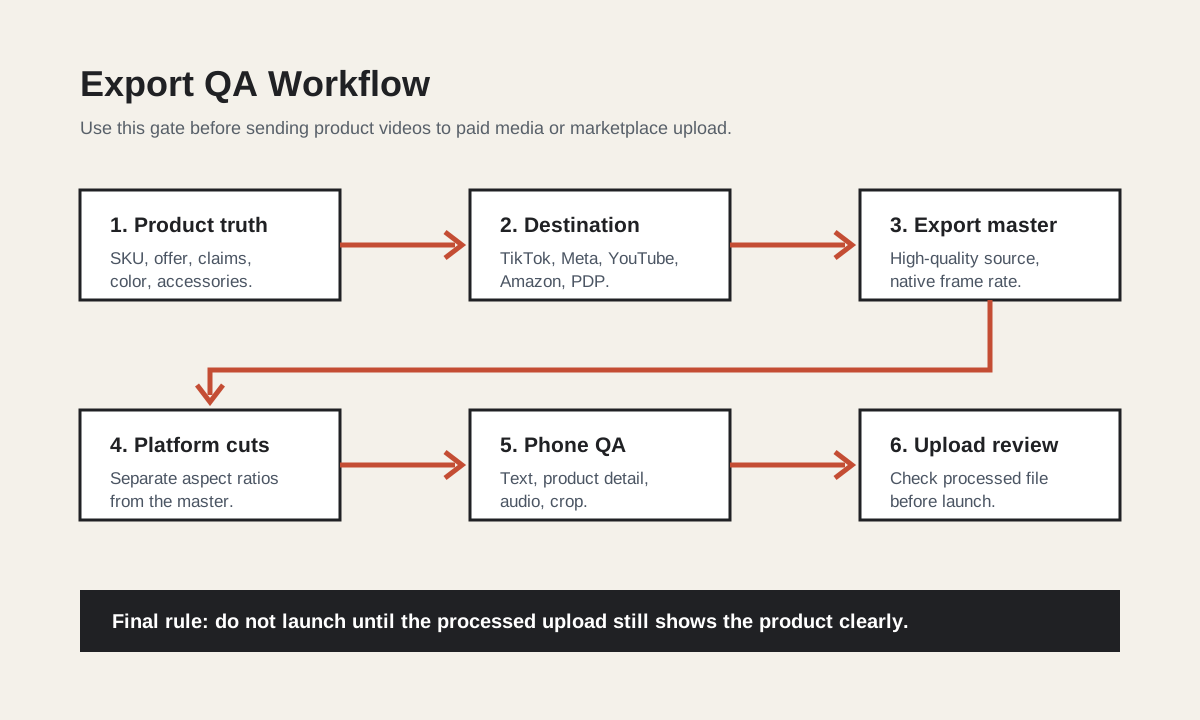
Follow this workflow for every ecommerce product video before it goes to a media buyer, marketplace, or storefront.
- Lock the product truth file. Confirm SKU, color, size, offer, included accessories, and claims.
- Choose the destination first. Decide whether the file is for TikTok, Meta, YouTube, Amazon, PDP, or a landing page.
- Export a high-quality master. Keep the original resolution and frame rate if they match the destination.
- Create platform cuts. Do not crop a final compressed file; crop from the master.
- Check text and product detail on a phone. Look for blurry claims, cropped CTA text, or changed product color.
- Check audio after export. Listen on phone speakers and make sure the voiceover is understandable.
- Upload a test or preview when possible. Some platforms recompress after upload, so review the processed version.
- Name and archive the final file. Use a filename that records product, placement, aspect ratio, and date.
For example:
desk-cable-dock-tiktok-9x16-1080p-30fps-2026-07-23.mp4
desk-cable-dock-meta-feed-4x5-1080p-30fps-2026-07-23.mp4
desk-cable-dock-amazon-sbv-16x9-1080p-30fps-2026-07-23.mp4
This naming habit prevents a common mistake: uploading the wrong cut to the wrong placement because every file is called final_video_v3.mp4.
Pre-Upload QA Checklist
Use this as the final gate before upload.
| Gate | Pass condition |
|---|---|
| Format | MP4 or MOV accepted by the destination. |
| Codec | H.264 unless the destination and workflow intentionally use another supported codec. |
| Aspect ratio | Matches the placement, not just the editor preview. |
| Resolution | At least 1080p for the main social or ad cut when possible. |
| Frame rate | Native to the edit and accepted by the platform. |
| Bitrate | High enough that product texture and overlay text stay clean. |
| File size | Under the platform limit with room for upload reliability. |
| Audio | Clear, licensed, and not required where the placement strips audio. |
| Captions | Readable on a phone and not covered by platform UI. |
| Product truth | Product color, scale, accessories, and claims match the live page. |
| CTA | Matches the actual landing page, product card, price, and offer. |
| Archive | Final source and export are saved with descriptive filenames. |
For broader creative checks, pair this article with the product video file size guide and the video ad metrics QA guide.
Common Export Mistakes
The most expensive export mistakes are small enough to miss in the editor.
- Exporting a vertical ad as 1920 x 1080 and relying on the platform to crop it.
- Compressing the file until the product label and price become unreadable.
- Uploading 60 fps because it sounds better, even though the footage was edited at 30 fps.
- Using a cinematic color grade that makes the product color look different from the PDP.
- Exporting from a downloaded TikTok or Instagram file instead of the original master.
- Forgetting that some Amazon placements are horizontal and have strict duration or audio rules.
- Naming all exports the same way and sending the wrong file to the media buyer.
- Testing only on a desktop monitor instead of the phone screen where buyers will see it.
If a video fails after upload, do not immediately rewrite the script. First check whether the export changed the product's clarity, pacing, text, or file compatibility.
FAQ
What are the best product video export settings for ecommerce ads?
Use MP4, H.264 video, AAC audio, progressive scan, square pixels, native frame rate, and a 1080p placement-specific aspect ratio. Then adjust bitrate and file size based on the destination.
Should ecommerce product videos be exported in 4K?
Usually no for first social ad tests. A clean 1080p export is easier to upload, review, and adapt. Use 4K only when you need a high-quality master, strong crop flexibility, or a premium placement that benefits from it.
Is H.264 or H.265 better for product video ads?
H.264 is the safer default because it is broadly compatible. H.265 can reduce file size at similar quality, but use it only when the destination accepts it and your review workflow supports it.
What bitrate should I use for a product video ad?
Use enough bitrate to preserve the product and overlay text after platform compression. Treat official minimum bitrates as acceptance floors. Fast motion, small text, beauty products, apparel, and textured items usually need a higher-quality export.
Should I export separate files for TikTok, Meta, YouTube, and Amazon?
Yes. Create one high-quality master, then export separate platform cuts for each placement. This prevents bad crops, wrong aspect ratios, stripped audio, and file-size issues.
Sources Checked
- Google Ads Help: About video ad specs
- Google Ads Help: Video ads specs and format requirements
- YouTube Help: Recommended upload encoding settings
- TikTok Ads Help: TikTok Auction In-Feed Ads
- Meta Ads Guide: Awareness Video Ad Specs on Facebook Feed
- Amazon Ads: Sponsored Brands video ad specs and guidelines
- Amazon Ads: Sponsored Products video guide
Final Takeaway
Good export settings protect the commercial job of the video. The file should upload cleanly, survive platform compression, preserve product truth, keep captions readable, and make the next action obvious. Once that gate passes, you can safely turn the same product proof into channel-specific cuts for TikTok Shop, Facebook ads, YouTube Shorts, and Amazon.