
Quick Answer
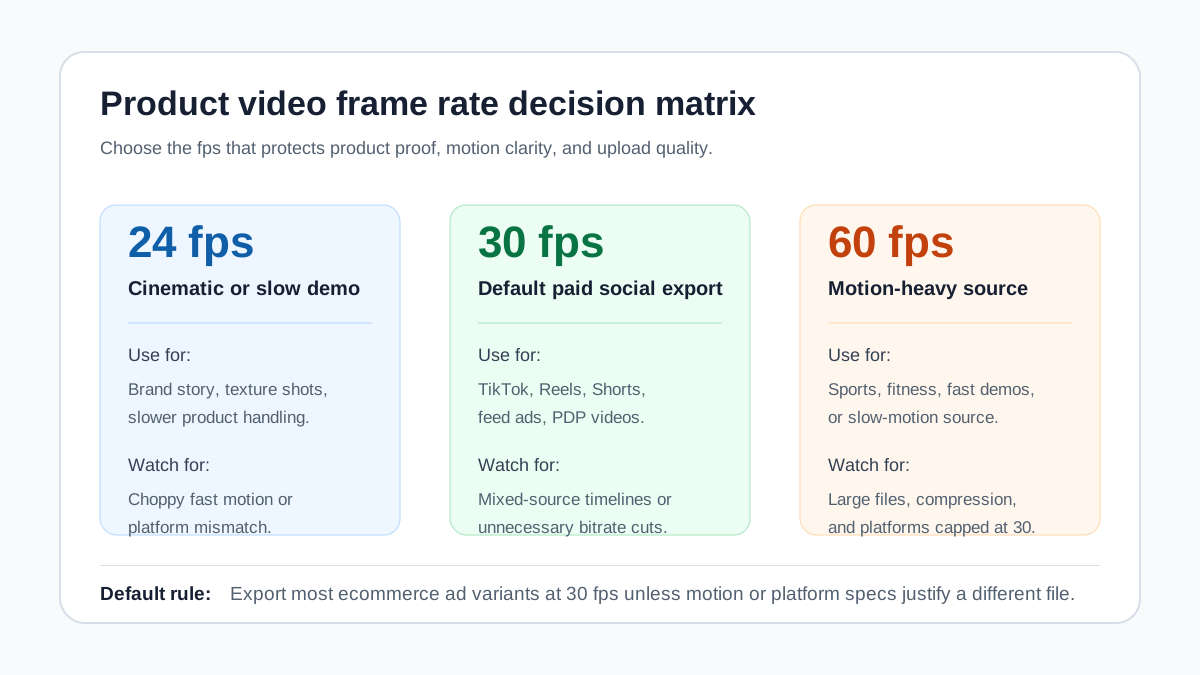
For most ecommerce product video ads, export at 30 fps unless the source footage, product motion, or platform requirements clearly point elsewhere. Use 24 fps for slower cinematic product shots, 30 fps for most TikTok, Reels, Shorts, feed, PDP, and retargeting videos, and 60 fps only when the source motion benefits from it or you need slow-motion flexibility. A good product video frame rate guide is not just a spec chart; it is a QA process that checks motion, captions, file size, compression, and the final platform preview before you spend budget.
Why Frame Rate Matters For Product Videos
Frame rate controls how many still frames appear in each second of video. For ecommerce teams, that choice affects more than smoothness. It changes how a product demo feels, how sharp motion looks after compression, how large the export file becomes, and whether the uploaded ad matches the platform's expectations.
A skincare serum being applied to a hand, a portable blender crushing ice, a foldable bag opening, and a shoe flexing during a walk do not need the same treatment. The frame rate should protect the buying evidence in the shot: texture, scale, movement, fit, before-after proof, and the moment the product solves the problem.
Frame rate also interacts with the production cluster you may already use. Pair this guide with the product video resolution guide, product video file size guide, product video length guide, and product video aspect ratio guide when you prepare a full creative set.
The Best Default Frame Rate
Use 30 fps as the default export for most ecommerce product videos. It is practical for mobile feeds, common in social creative workflows, easier to keep under file limits than 60 fps, and smooth enough for most product handling, caption animation, and AI-generated product motion.
That does not mean every file should be 30 fps. It means 30 fps is the safest starting point when the search intent is "what should I export?" rather than "what did I shoot?"
| Frame rate | Best ecommerce use | Avoid when |
|---|---|---|
| 24 fps | Brand story, slow product close-ups, premium lifestyle scenes, controlled product demos | Fast hand motion, sport/fitness products, rapid cuts, or specs that expect 30 fps |
| 25 fps | Region-specific PAL workflows or source footage already captured at 25 fps | US-focused paid social exports where 30 fps is simpler |
| 30 fps | Most paid social, YouTube, PDP, retargeting, UGC-style product videos, captioned demos | Source is true 60 fps and fast motion looks better at 60, or a platform asks for another value |
| 60 fps | Fast product motion, sports gear, fitness products, slow-motion source, high-speed demos | Tight file-size limits, Amazon placements capped at 30 fps, or ordinary static product shots |
The practical rule is simple: do not raise frame rate just because the export menu allows it. Raise it when the viewer can actually understand the product better.
24 fps, 30 fps, Or 60 fps?
When 24 fps Works
Use 24 fps when the product video is intentionally slower and more cinematic. It can work for jewelry, premium accessories, home decor, skincare textures, unboxing shots, brand storytelling, and controlled product close-ups.
The risk is motion cadence. If the product moves quickly, 24 fps can look choppy after compression or when mixed with 30 fps footage. It can also feel less native inside short-form social feeds where users expect a cleaner mobile cadence.
Use 24 fps only when the shot is stable, the product is easy to understand, and the platform does not require a higher frame rate for the placement.
When 30 fps Works
Use 30 fps for the majority of ecommerce product ads. It is the most practical balance for UGC-style demos, hands-in-frame product use, app/product screen captures, captioned social videos, AI-generated product scenes, and placement variants across TikTok, Meta, YouTube, Shopify PDPs, and retargeting.
Instagram Help Center guidance for reels says reels should have a minimum frame rate of 30 FPS and minimum resolution of 720 pixels. Amazon Sponsored Brands video accepts several common values up to 30 fps. This makes 30 fps a safer daily default than 24 fps for many ecommerce teams.
When 60 fps Works
Use 60 fps when the source footage genuinely benefits from more motion samples. Good examples include sports and fitness products, fast mechanical demos, pet toys, outdoor gear, kitchen tools with quick action, and clips you plan to slow down in editing.
Do not use 60 fps as a universal export. It increases file size, can invite more compression, and may not be accepted or useful for every placement. For example, Amazon Sponsored Brands video lists accepted frame rates up to 30 fps, so a 60 fps master may need a separate 30 fps delivery export.
Platform Notes For Ecommerce Teams
Platform specs change, and upload tools can accept more formats than a public help page recommends. Use this table as a planning layer, then verify inside the ad manager or upload preview before launch.
| Platform or placement | Practical frame-rate guidance | Production note |
|---|---|---|
| TikTok In-Feed auction ads | TikTok's current public spec page focuses on dimensions, duration, file size, bitrate, and safe zones rather than a single fps rule | Test the final mobile preview for stutter, compression, and UI overlap |
| Instagram Reels | Instagram Help Center says reels should have at least 30 FPS and 720-pixel resolution | Use 30 fps for most Reels-style product demos unless 60 fps source adds clear value |
| Facebook and Instagram feed ads | 30 fps is a practical ecommerce default | Verify in Meta Ads Manager because placement-specific specs can vary and some public pages are login-gated |
| YouTube video ads and Shorts | Google Ads recommends HD dimensions and safe zones; length varies by format and campaign type | Export clean 30 fps files for most ads unless source motion or YouTube workflow requires otherwise |
| Amazon Sponsored Brands video | Amazon lists accepted values including 23.976, 24, 25, 29.97, 29.98, and 30 fps | Do not deliver 60 fps for this placement; keep 16:9 and check bit rate, duration, and safe area |
| Amazon video ads | Amazon's custom video ad spec lists at least 15 FPS and recommends short, understandable, muted-friendly creative | Confirm the specific ad unit, because Sponsored Brands and custom video ads have different rules |
| Shopify PDP or landing page videos | 24 or 30 fps usually works; 30 fps is safer for demos | Optimize for page speed and product clarity, not cinematic specs alone |
A Frame-Rate Workflow Before Export
Use this workflow when a product video moves from ShopShot, a creator file, a phone capture, or an editing timeline into final ad exports.
- Check the source footage. Note whether clips are 24, 25, 30, or 60 fps.
- Pick the primary placement. TikTok-first, Amazon-first, PDP-first, and YouTube-first exports have different limits.
- Match the timeline to the dominant source footage unless there is a clear placement reason to convert.
- Avoid mixing frame rates casually. Mixed footage can create duplicate frames, skipped frames, or subtle judder.
- Export a short test section before the full video when motion is important.
- Review on a phone, not just in the editor.
- Upload to the platform preview and check the compressed version.
- Keep a high-quality master so you can create a separate delivery file for platforms with stricter requirements.
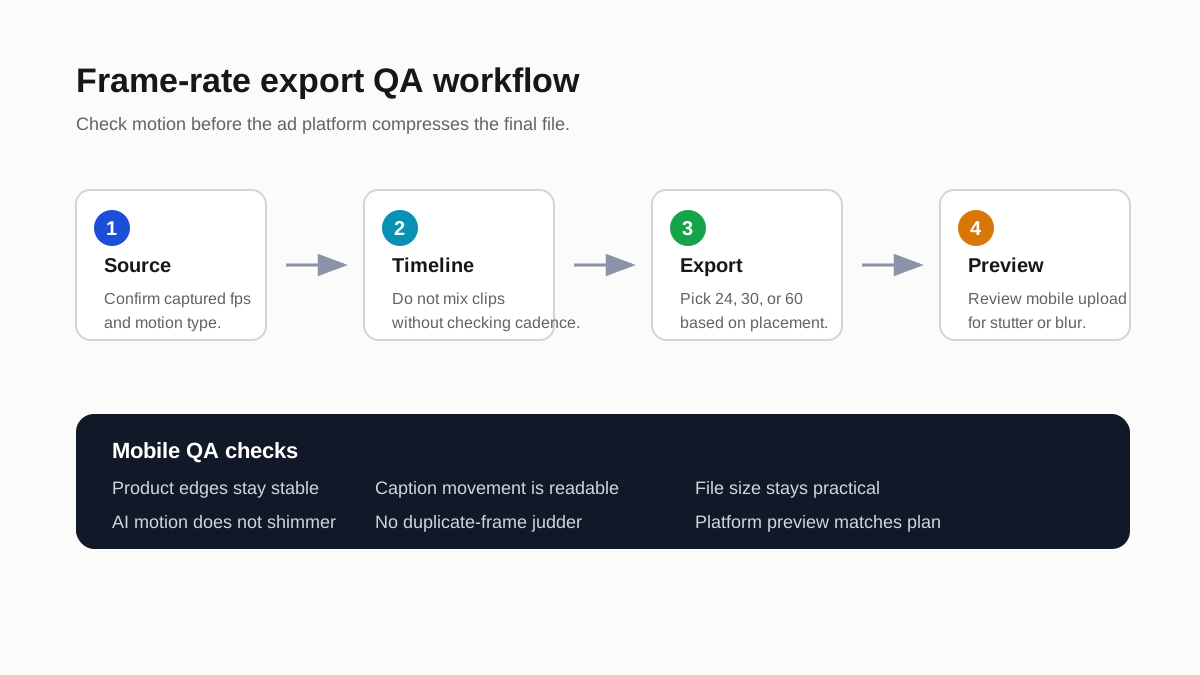
This process matters most when the video uses small product details, animated captions, hand movement, or AI-generated motion. Those are the first places where frame-rate problems become visible.
How Frame Rate Affects File Size And Compression
Higher frame rate means more frames per second. More frames usually mean a larger file or more aggressive compression at the same file size. That tradeoff can hurt ecommerce ads because the important evidence is often small: label text, product texture, before-after difference, button movement, packaging detail, or a hand demonstrating scale.
Use this decision table before you export at 60 fps.
| Question | If yes | If no |
|---|---|---|
| Does fast motion make the product easier to understand? | Test 60 fps and compare mobile preview quality | Stay at 30 fps |
| Will the platform accept or preserve 60 fps? | Create a 60 fps delivery file if it still compresses well | Export 30 fps |
| Is the file already close to the upload limit? | Lower duration or bitrate carefully before raising fps | Keep frame rate stable |
| Does the product have tiny details or text? | Protect clarity with resolution and bitrate first | Frame rate is less important |
| Is the video intended for Amazon Sponsored Brands? | Export an accepted value up to 30 fps | Do not use 60 fps for that delivery file |
Frame rate should not be used to compensate for weak creative. A 60 fps video with a vague hook, tiny captions, or unclear product framing will still perform poorly.
Common Frame-Rate Mistakes
Exporting Everything At 60 fps
This is the most common technical overcorrection. It can make files larger without improving the buying signal. For static product shots, beauty close-ups, offer explainers, and simple hands-in-frame demos, 30 fps often looks clean enough and compresses more predictably.
Mixing 24 fps And 30 fps Clips Without Reviewing Motion
Mixed timelines can look fine in the editor and then feel uneven after export. If your UGC creator shot 30 fps footage but your product hero animation is 24 fps, watch the hand movement, pan speed, and caption animation after export.
Converting Low-Quality Source To A Higher Frame Rate
You cannot create real motion detail by exporting a 24 fps source at 60 fps. The file may contain more frames, but the extra frames are repeated or interpolated. In ecommerce, that can make product motion look artificial.
Ignoring Captions And Overlay Motion
Frame rate is not only about the product. Caption movement, price badges, arrows, star ratings, and offer text can stutter when the timeline and export do not match. Use the product video captions guide when captions carry the key sales message.
Forgetting Platform-Specific Delivery Files
One master file is not the same as one delivery file. You may keep a 60 fps editing master for a sports product, then export 30 fps delivery files for most placements and a separate 16:9 Amazon version.
Frame Rate For AI-Generated Product Videos
AI-generated product videos need an extra motion review because the output can look smooth while product evidence changes frame to frame. Check the product edges, labels, hands, shadows, liquid movement, fabric texture, and any before-after proof.
Use this AI-specific QA list:
- Product shape stays consistent during motion.
- Labels, logos, and packaging do not morph between frames.
- Hands do not hide the product benefit.
- Caption timing matches the spoken or visual proof.
- Motion blur does not make small product details unreadable.
- The final platform preview still looks like the approved source file.
Google Ads is rolling out AI content label settings for certain ad products and regions, so frame-rate QA should sit beside disclosure, claims, and compliance review. For the creative layer, start with AI product video prompts for ecommerce ads, then run the product video compliance checklist before publishing.
Recommended ShopShot Workflow
Here is a practical ShopShot workflow for ecommerce teams:
- Start with product images, product-page proof, offer, target channel, and a script.
- Generate the product video variant for the primary format first.
- Use 30 fps as the default delivery target unless the product motion clearly needs another choice.
- Create platform variants for aspect ratio, resolution, length, captions, and file size.
- Export a short sample section when motion is the key selling point.
- Review the uploaded platform preview on mobile before launching.
- Keep the approved master so you can create different delivery files without rebuilding the concept.
If you need to build the script first, use the product video ad script template. If you need product-specific story planning, use the product video storyboard template. When you are ready to generate variants, use ShopShot's AI video generator.
Pre-Publish QA Checklist
Run this checklist before the ad goes live.
| Check | Pass standard |
|---|---|
| Source fps known | The team knows whether the source is 24, 25, 30, or 60 fps |
| Timeline fps intentional | The editing timeline is not an accidental default |
| Export fps matches placement | The delivery file fits the platform or ad unit |
| Product motion clean | No stutter, skipped frames, shimmer, or artificial motion |
| Captions readable | Animated captions and offer text remain smooth and legible |
| File size practical | Higher fps does not force harsh compression |
| Mobile preview checked | The uploaded version still matches the approved creative |
| Separate files created | Amazon, social, YouTube, and PDP exports are not forced into one file |
For platform-specific checks, pair this workflow with Amazon Sponsored Brands video creative checklist, YouTube Shorts product video specs, Meta video ad specs, and the product video file size guide.
FAQ
What frame rate should product video ads use?
Use 30 fps for most ecommerce product video ads. It is a practical default for social feeds, Shorts-style videos, PDP demos, retargeting, and captioned product videos. Use 24 fps for slower cinematic shots and 60 fps only when motion-heavy source footage benefits from it.
Is 60 fps better for ecommerce videos?
Not automatically. 60 fps can help fast motion or slow-motion source footage, but it also increases file size and may create more compression. For many ecommerce ads, a clean 30 fps export with strong product clarity is better than an oversized 60 fps file.
Can I upload 24 fps product videos to social platforms?
Sometimes, but it depends on the placement. A 24 fps product video can work for slow brand or product shots, but Reels-style and fast mobile placements often work better at 30 fps. Always check the platform preview before launch.
Should Amazon product videos use 30 fps?
For Sponsored Brands video, Amazon lists accepted frame rates including 23.976, 24, 25, 29.97, 29.98, and 30 fps. Use one of the accepted values, keep the file 16:9, and verify the current campaign requirements before upload.
Does changing frame rate fix blurry product videos?
Usually no. Blurry product videos are more often caused by low resolution, low bitrate, overcompression, fast motion blur, poor focus, or tiny on-screen product detail. Fix those issues before changing frame rate.
Sources Checked
- TikTok For Business, Auction In-Feed Ads specs, checked July 22, 2026.
- Google Ads Help, About video ad specs, checked July 22, 2026.
- Amazon Ads, Sponsored Brands video specs and guidelines, checked July 22, 2026.
- Amazon Ads, Amazon Video Ads specs and guidelines, checked July 22, 2026.
- Instagram Help Center, Reel size and aspect ratios on Instagram, checked July 22, 2026.
Final Takeaway
The best product video frame rate is the one that keeps the product motion believable after upload. Start at 30 fps for most ecommerce ads, use 24 fps only when the creative is intentionally slower, use 60 fps only when fast motion deserves it, and always judge the platform preview before spending.